
Process Settings
The Process Settings are the default settings for your provider calendar: whatever is set here, timum applies to every new property you create. You will find this page under Settings → Process Settings.
For new properties only
The page has five groups. To edit, click Adjust defaults (1) in the first group; the remaining groups can be changed directly.
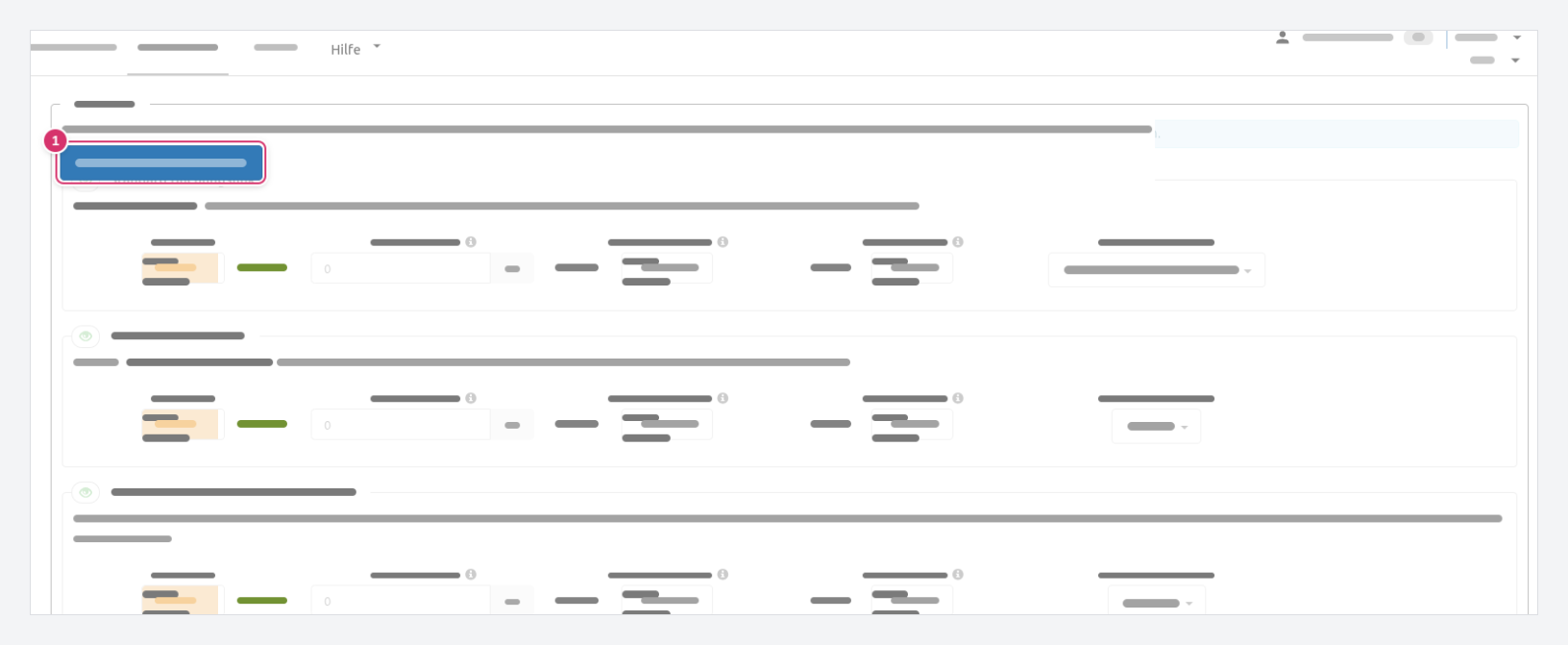
Property: Defaults per Booking Channel
Every property automatically receives five booking channels (see Resource Channels). For each channel, you set the starting values here:
| Channel | What for |
|---|---|
| Standard Booking Link | The general link for emails, websites, portals, property listings, notices |
| Second Booking Link | For extended processes, such as a second appointment for special contacts |
| SELECTION - Limited Appointment Choice | Links from the appointment selection in the calendar (option "Selection") |
| Embedded Booking Calendars | The calendar as an iFrame on your website |
| In website plugin views and your overall calendar | Website plugins and visibility in the overall calendar of all properties |
Each channel has the same fields:
- Booking type – bookable (customer books directly) or requestable (you confirm). See Request vs. Direct Booking.
- Advance booking period in minutes – how short-notice customers may book.
- Gapless allocation – Enabled lines up new appointments without a gap after existing ones. See Gapless Appointment Scheduling.
- Booked appointments – visible shows booked times as occupied, hidden hides them.
- Provider contact details – visible, hidden, or hidden when fully booked. See Hide Appointment Coordinator Contact Details. The Embedded Booking Calendars channel does not have this field.
Property Address Information
- visible – The address appears on the booking page and in the confirmation email.
- hidden – Customers only receive the address with the reminder on the evening before the appointment.
More on this under Meeting Point for Appointments.
Activation Behavior
Initial activation and Renewal determine whether timum applies tickets automatically – each set to automatic, manual, or according to plan settings. The help text below the field names your plan's default; Reset to default restores it. What a ticket is and what happens after it expires is explained under Tickets and Activation.
Contact Information
By default, customers see the contact details of the user assigned as the contact person for the property or the appointment. With Adjust assignment (1), you switch each field to the calendar's data:
- Email, Phone number, Mobile number – each either Calendar or Contact person
- Contact name – Calendar title or Contact person
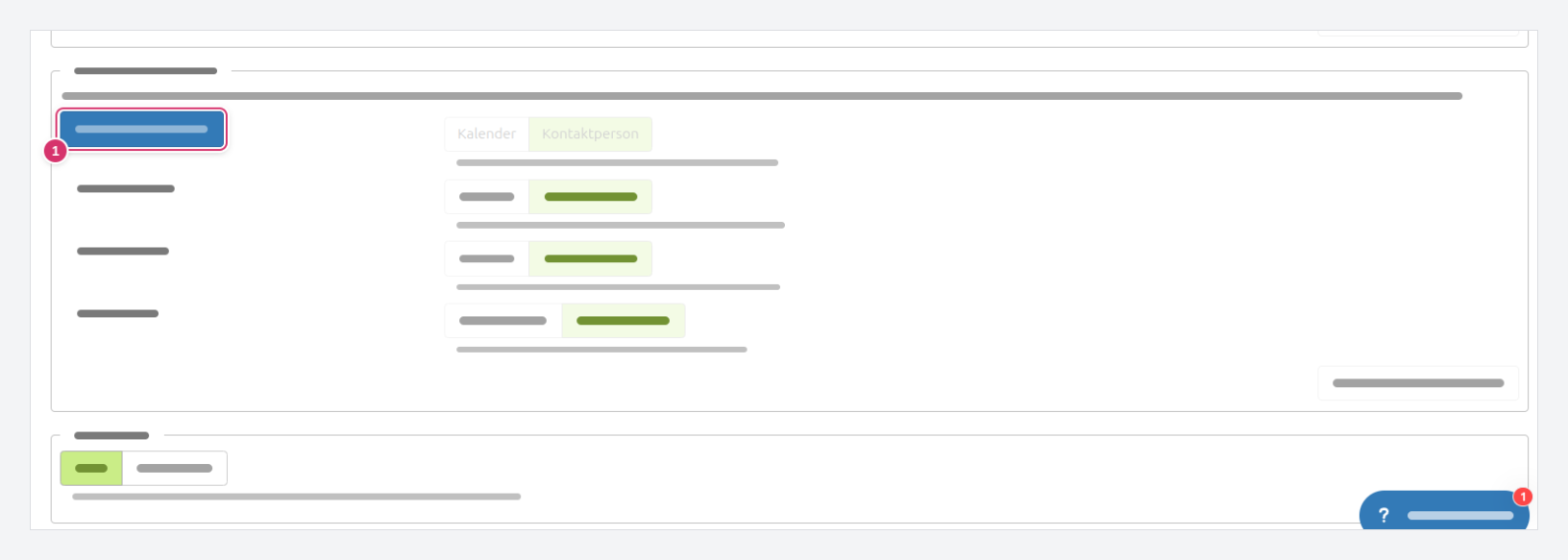
If your appointment coordination runs through a central point, set all fields to Calendar: timum will then show the same contact details in every appointment, regardless of who manages the property. An example is given under Appointment Coordinator Contact Differs from Real Estate Agent Contact.
Client Group
- open (1) – the usual setting: people who are not registered with timum may also book appointments.
- closed (2) – only regular contacts registered with timum may book, for example members of a club or a closed group.
