
Users, Roles and Manager View
In timum you rarely work alone: colleagues add appointments, a coordinator answers requests, a real estate agent is active in two offices. This article explains how users, provider calendars, and accounts are connected and where you can manage your team.
User, Provider Calendar, Account
- A user is a person with their own login. Users are free of charge.
- A provider calendar is the shared calendar of a team with its properties, appointment types, and booking links. A user can be a member of any number of provider calendars – including calendars of different companies.
- An account is the company behind it: it holds the plan and billing and can contain multiple provider calendars.
One login for everything
Managing team members
You can manage the members of a provider calendar under Settings → Users. The table shows the first name, last name, email, mobile number, and the role (1) of each member. The person who created the calendar holds the Owner role.
Via Add member (2) you can add another person using their email address. If the person does not yet have a timum user account, they will create one on their first login.
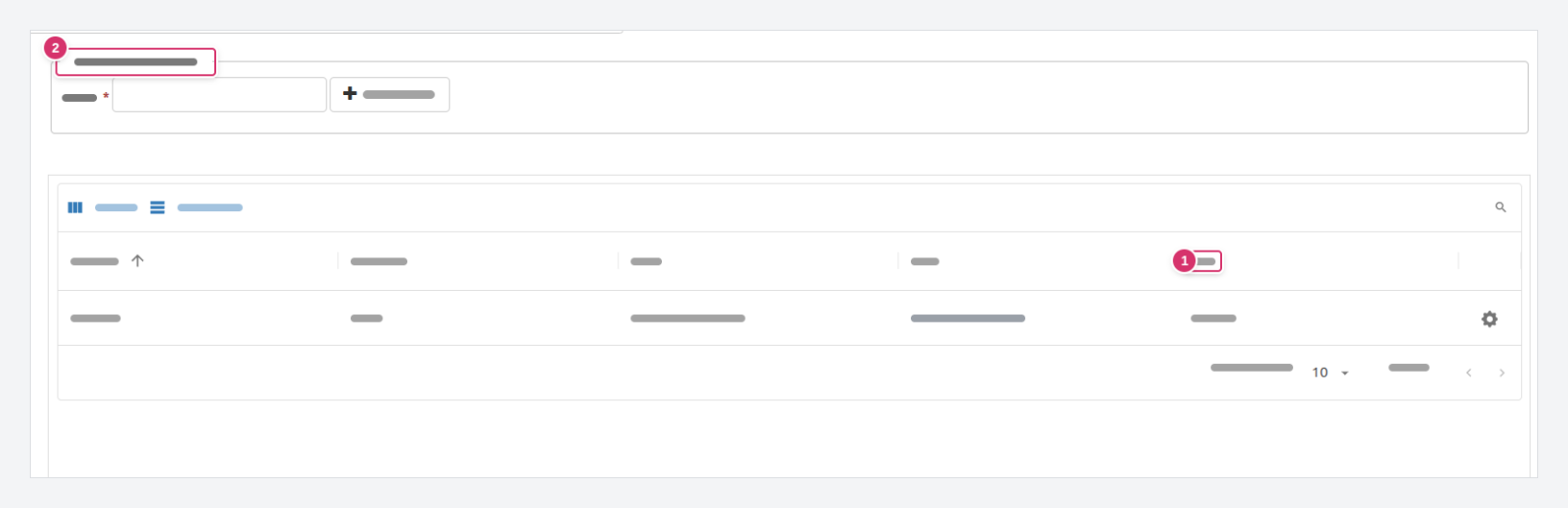
New members can see the shared calendar, add appointments, and be assigned as the contact person for a property. To be bookable themselves, they need their own property.
If you use onOffice, team members are usually added automatically from the CRM: see Adding team members – with or without onOffice integration.
Personal settings and your calendars
Every user has their own area, accessible via the menu with your name in the top right:
- Personal settings: Your user data, password, language, the connected calendar accounts (Microsoft 365, Google, iCloud) and your default contact profile.
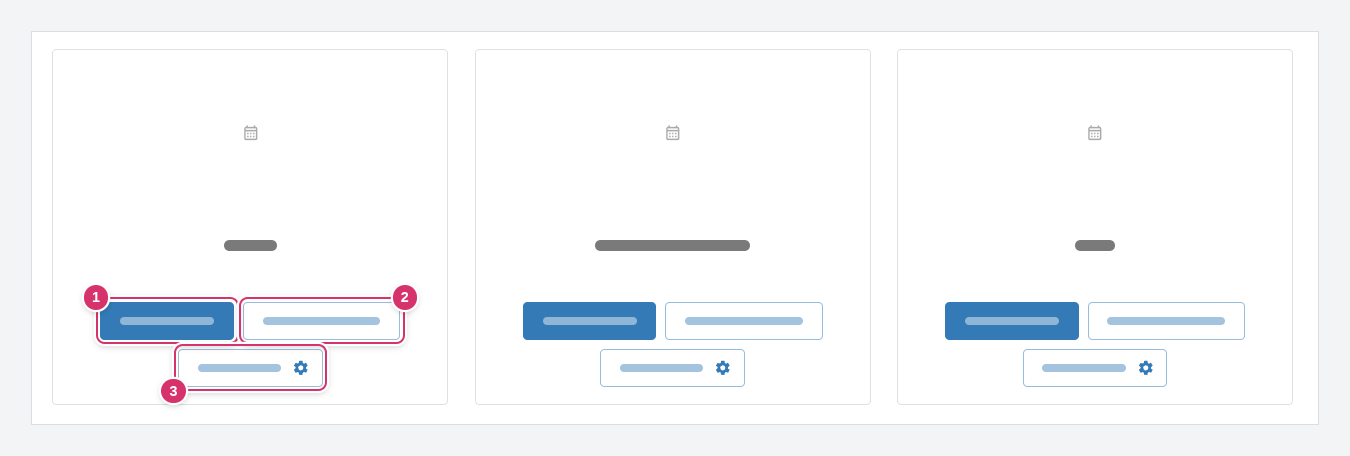
- Provider calendars: For each calendar you are a member of, a tile with the buttons Scheduling (1) (opens the calendar), Booking preview (2) (shows your booking page as customers see it), and Contact profile (3) (your contact details specific to this calendar).
Manager view and Organizer view
timum has two interfaces. The Manager view is the full calendar with all settings – what you see after logging in via the website. The Organizer view is the streamlined scheduling within a CRM system such as onOffice, where settings are hidden and the focus is on a single property.
If you are in the Organizer view and need a setting, click the grey circle with three lines in the top right and switch to the Manager view. There you will find settings, all properties, users, and your personal settings as described above.