
Booking Layout and Theme Editor
Your customers book on your timum booking page or in a widget on your website. You define how this view is structured and what it looks like under Settings → Booking Layout – once for all resources and channels of your provider calendar.
Booking layout: choosing the view
The Booking Layout determines how available appointments are displayed:
| Layout | What it looks like | Suited to |
|---|---|---|
| List | Available times listed by day, one below another | few appointments per week, mobile customers |
| Condensed | Compact day columns | many appointments per day, e.g. consultation hours on a 15-minute grid |
| Calendar Week | Weekly overview with timeline | regular consultation hours throughout the week |
| Month | Monthly calendar, appointments shown after clicking a day | long-term appointments, e.g. viewings in a few weeks |
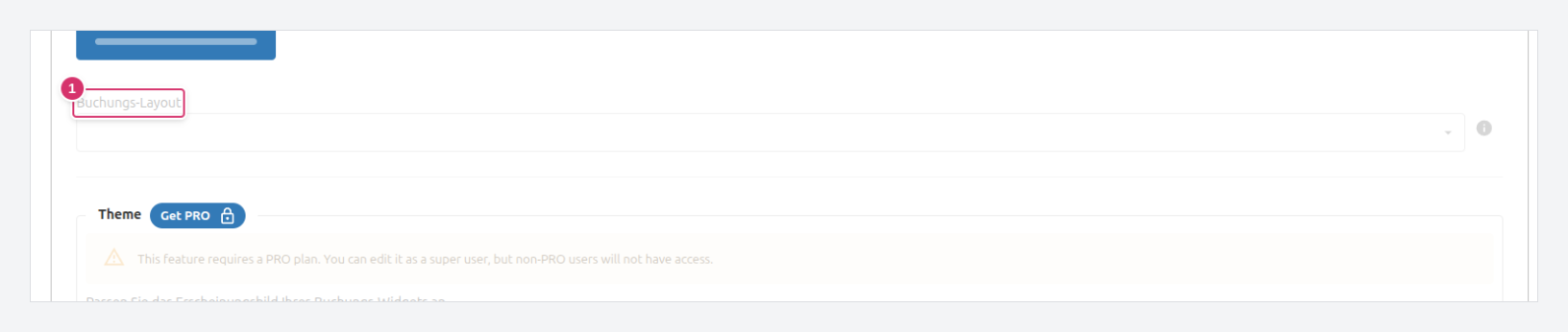
Select the layout in the Booking Layout dropdown (1). This setting is the default for your booking page; individual Booking Channels can have their own layout.
Corporate design: colors, shape and font
Professional feature
In the Theme section, you adapt the appearance to your brand. Changes take effect immediately on your booking page and on all embedded widgets – no changes to the integration code snippet on your website are needed to customize it.
Customizing the design
The Simple mode offers the most important setting options. Adjustments at this level are quick and already have an impressive effect. The Expert mode goes into deep detail on the adjustable design parameters. If a template has been loaded as a starting point, you can refine it further using these parameters.
The settings are divided into two groups:
Everywhere – affects the layout of the actual booking form that appears on timum booking pages and in embedded booking widgets:
- Colors: Main color and button text, backgrounds for page, window and cards, lines, "mouse hover" color, main text. Next to the main text, timum shows the contrast value so the text stays readable.
- Shape: Padding (Min to Wide), card shadow (Flat to Strong), corners (Sharp to Pill) and density of appointment slots (Compact to Spacious).
- Font: Font family and font size.
Booking page only – affects the outer frame of your individual timum booking pages:
- Background and text of header and footer
- Header height, content width and heading size
Don't forget to click Save after making changes.
Below this, developers and beta users will find the Advanced Configuration (BETA), which controls form fields, languages and the widget's behavior – as described in the widget documentation.
Using a template as your base design
The fastest way is a ready-made template:
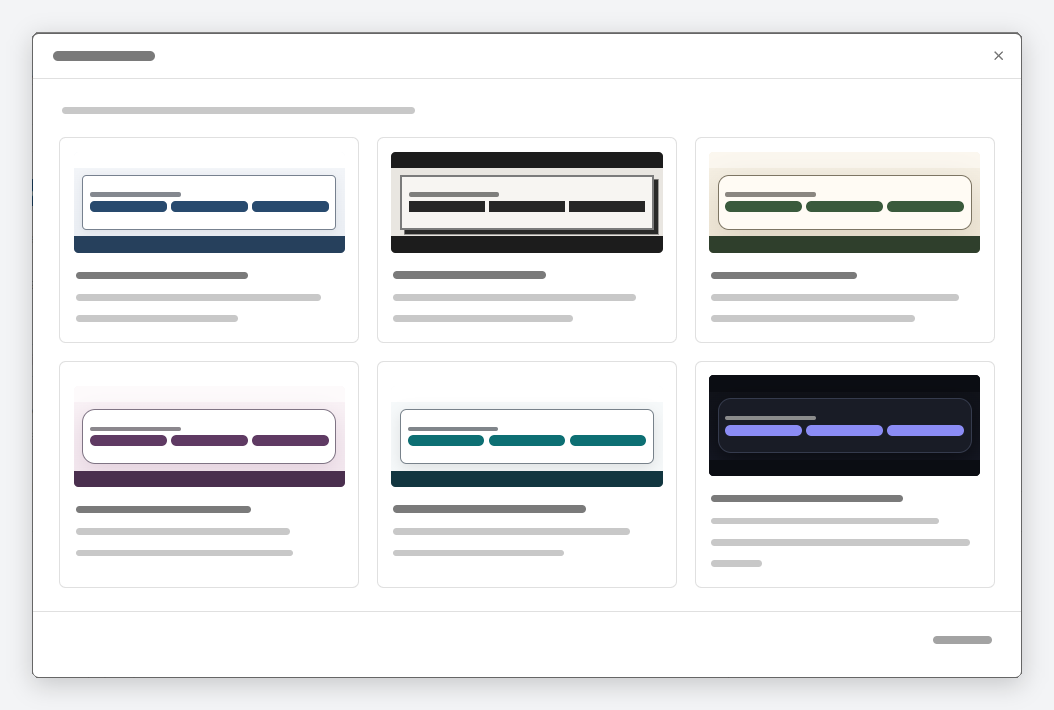
- Click Load Design (1). This opens the "Load Design" dialog with six templates.
- Choose a template. timum shows it in preview mode: your previous design remains saved until you decide.
- Click Apply Template (2) to keep the template, or Discard Template to return to your previous design.
- Adjust individual values if needed and click Save (3).
A template replaces your settings
The six templates at a glance
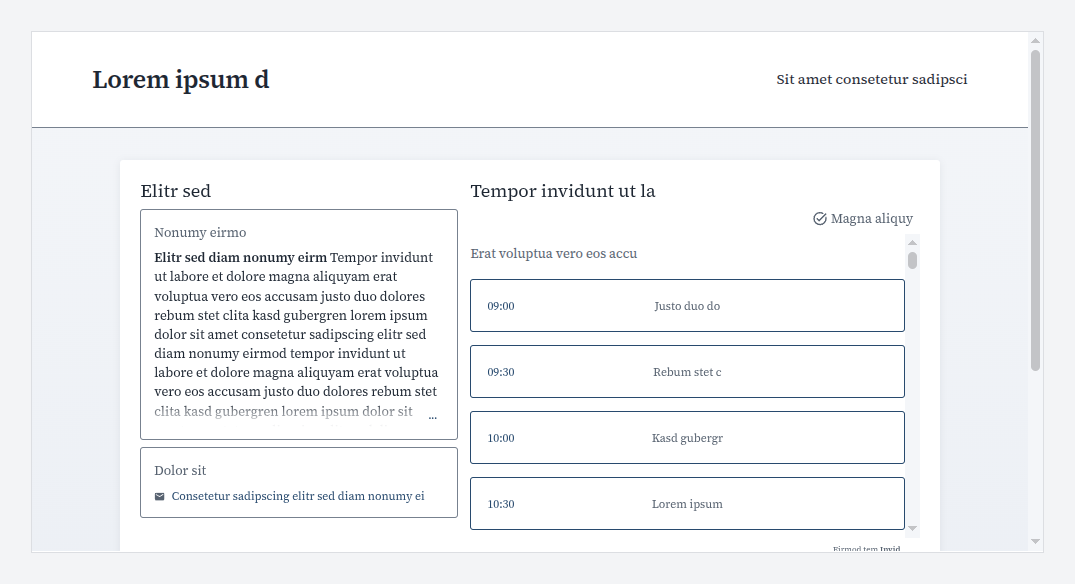
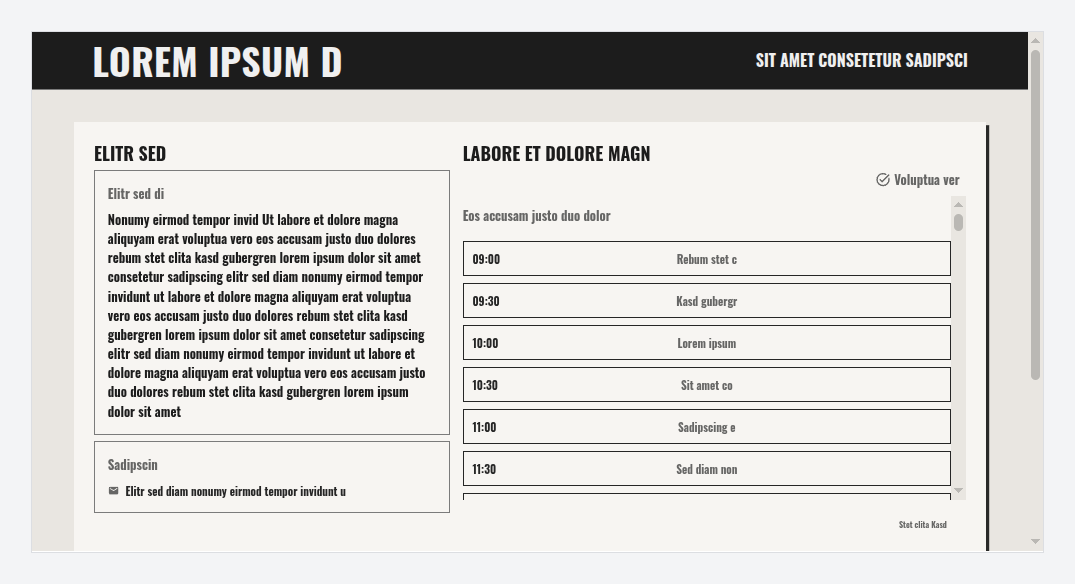
Each template is a complete design made up of colors, font and shape. Of course, every template can be combined with our other views (calendar, month, compact, etc.); with or without description text in the left column. The images show the same booking page with sample text, once per template – so you can see what the settings below add up to before you load one.
Mappe — careful & serious. Calm, precise, trustworthy. Clean lines, muted colors, serif typeface.
Werkbank — direct & rugged. Angular, bold, no frills. Hard edges, narrow capitals, deep shadows.
Feierabend — inviting. Warm and hospitable. Earthy tones, soft corners, quiet serifs – like a restaurant menu.
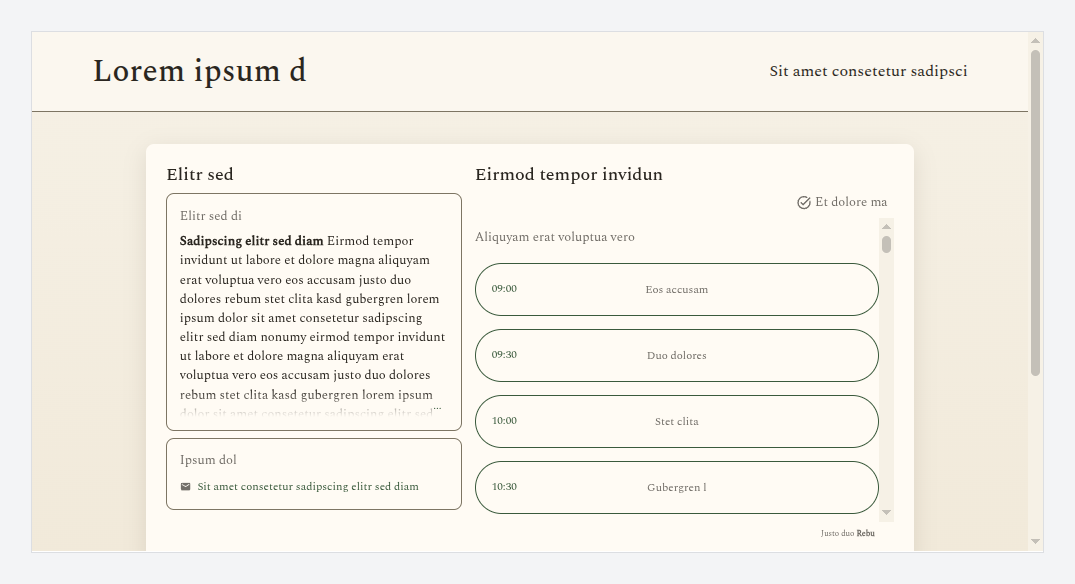
Pigment — with a personal touch. Expressive and soft. Round corners, plum tone, a delicate colored shadow.
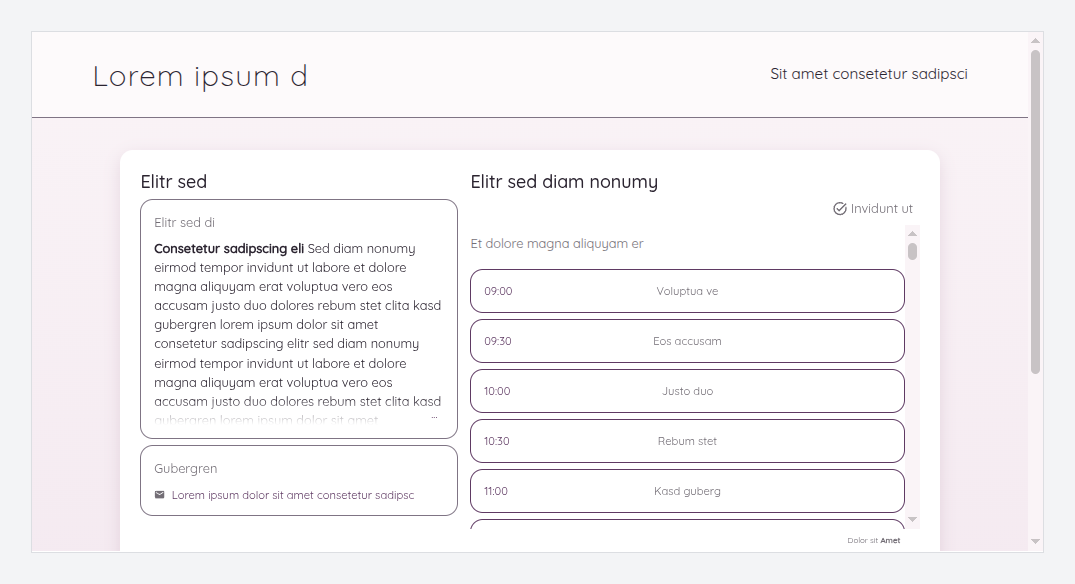
Kadenz — clear & in motion. Clear, fast, energetic. A system font that loads nothing extra, bold jumps in size.
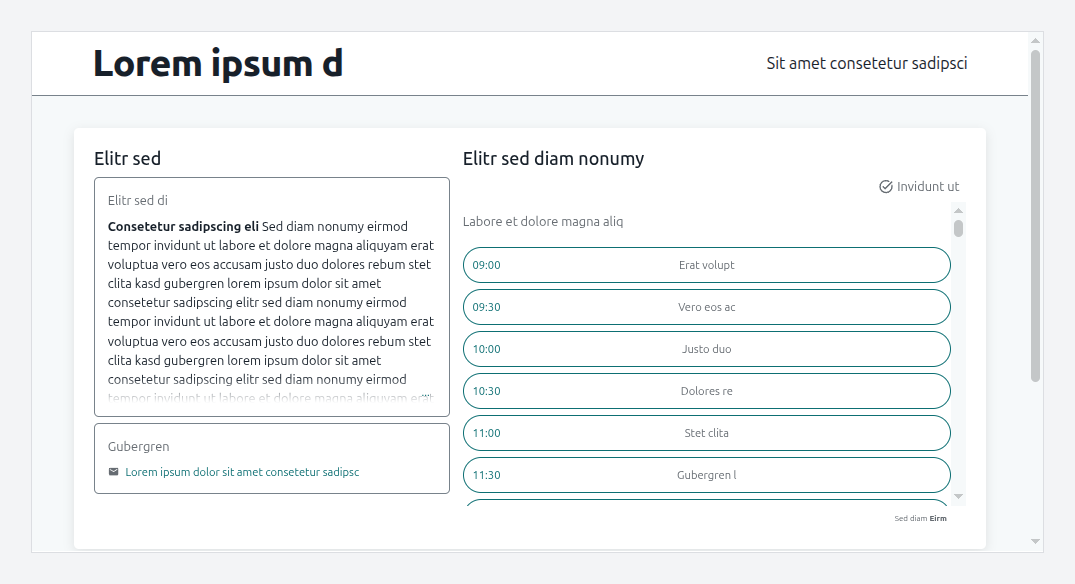
Nocturne — dark & modern. A dark, calm design. Deep indigo tones, warm off-white, a violet accent with warm amber.
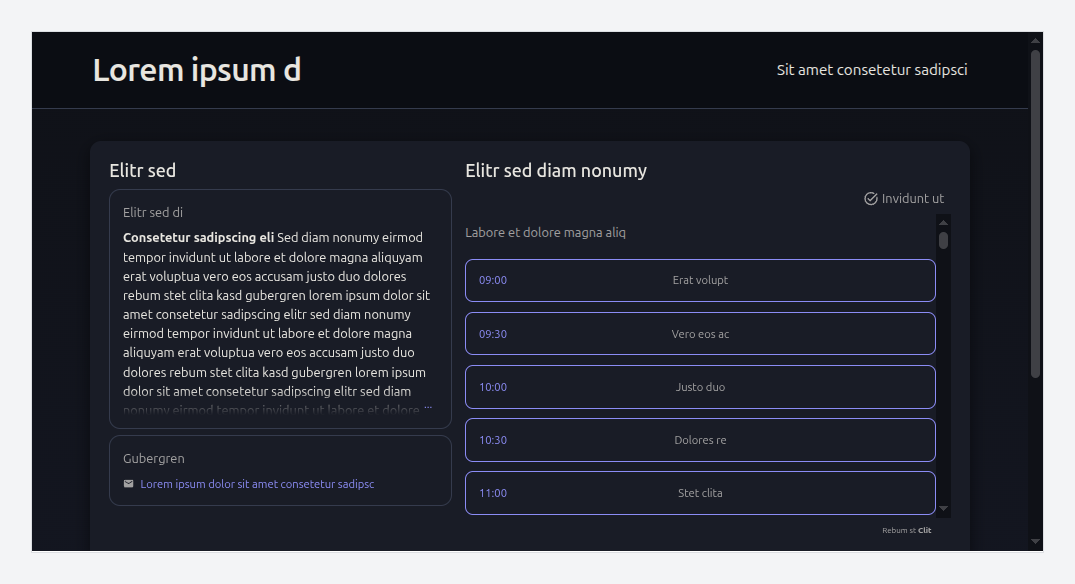
Related topics
- Embedding the widget
- Booking Channels – custom links and layouts for multiple resources
- Booking button